Teaching online with a poor connection: a tutor's checklist
A checklist for tutors whose students join on weak wifi, mobile data or a phone: a pre-lesson check, low-bandwidth lesson shapes and a drop plan.
By Gomently Team10 min read


Most advice about bad connections says "get better internet". You cannot do that for a student who sits on shaky home wifi, mobile data or a phone. You can change your side of the lesson.
This guide is for tutors whose students drop, freeze or crackle. By the end you will have three things: a two-minute check to run before every lesson, a lesson shape that needs little bandwidth, and a drop plan you have agreed with the student before it is needed. Every step works with any tool. One short section at the end says where Gomently helps.
1. Know what uses the connection
Not every part of a lesson costs the same. Video is the heavy part, and it gets heavier with several cameras and with screen sharing. Text, taps on a screen and short typed answers are light.
The University of Bristol's guide to low-bandwidth online teaching puts it simply: "limit use of webcam, video and application sharing and ensure students are aware of Dial-in access". KQED's tips for students with limited internet say the same from the other side: video calls "require a lot of data".
So plan the lesson by what each part needs:
- Reading and written tasks need no video at all.
- Speaking needs good audio, not faces.
- Explaining a new point may need a picture, but rarely a moving one.
Worked example
Say you teach a 50-minute English lesson to a teenager on a busy family wifi. You open with cameras on for a two-minute hello. When you move to a reading text and its tasks, you both switch cameras off. The student reads and answers on their own screen; you watch the answers and stay on audio. For the speaking part, cameras can come back on if the line holds, or stay off if it does not. UBC's low-bandwidth guide notes that "in meetings where audio is a priority, you can turn off your video feed to reduce the strain on bandwidth".
Ask about the setup
In the first lesson, ask three questions:
- Where do you sit when we have class? (Far from the router? In a shared room?)
- Which device do you use: laptop, tablet or phone?
- Does anyone else use the line at the same time, such as streaming or games?
Bristol's guide lists what to think about: "available hardware, software, network, timezone, access to quiet working space." Also ask which connection they are on. UBC points out that "students who have spotty Wi-Fi may have a better Internet connection through their phone data plan." A student who switches from wifi to data for one hour a week may solve half the problem.
2. A two-minute check before every lesson
Most lost minutes happen at the start: a student who cannot hear, a link that will not open, ten minutes of "can you see me now?". A short routine fixes most of it.
Open the lesson link early. Be in the room a few minutes before the start. If the student also arrives early, you have time to fix things before the clock runs.
Test sound first, camera second. Sound is what the lesson cannot do without. Ask the student to say one sentence, then you say one back. Only then try cameras.
Agree a backup channel. Decide now how you will reach each other if the call fails. A text message or a messaging app is enough. Bristol's guide asks teachers to "clearly communicate how students should contact you and what to do in the event of technical issues", and an NCSSM teaching guide suggests that when internet is limited, you "use SMS or messaging apps (e.g., WhatsApp) to share updates, assignments, or lesson summaries."
A checklist you can copy
- Lesson link sent, and the student knows where to find it.
- I am in the room a few minutes early.
- Sound works both ways.
- Camera tested, or we agreed to start without it.
- The student is on their best connection (wifi or data, whichever is steadier today).
- Backup channel open on my phone.
- Today's first task is something the student can do alone if the call drops.
If you want more habits for the minutes before a lesson, see how to prepare for a tutoring lesson.
3. Plan lessons that survive a freeze
A lesson that depends on you narrating slides stops the moment your voice cuts out. A lesson built from short tasks keeps going, because the student has something to do on their own screen while you wait.
Short tasks the student can finish alone
Aim for tasks that take a few minutes each and make sense without you talking. Good shapes:
- Matching: pair a word with its meaning, or a verb with its past form.
- Gaps: a short text with missing words, typed or picked from a word bank.
- Sorting: put words into groups, such as regular and irregular verbs.
- Ordering: put a jumbled sentence back together.
Each one is a tap or a short word, which is light on any line. Each has a clear end, so the student knows when they are done, even if you have gone quiet.
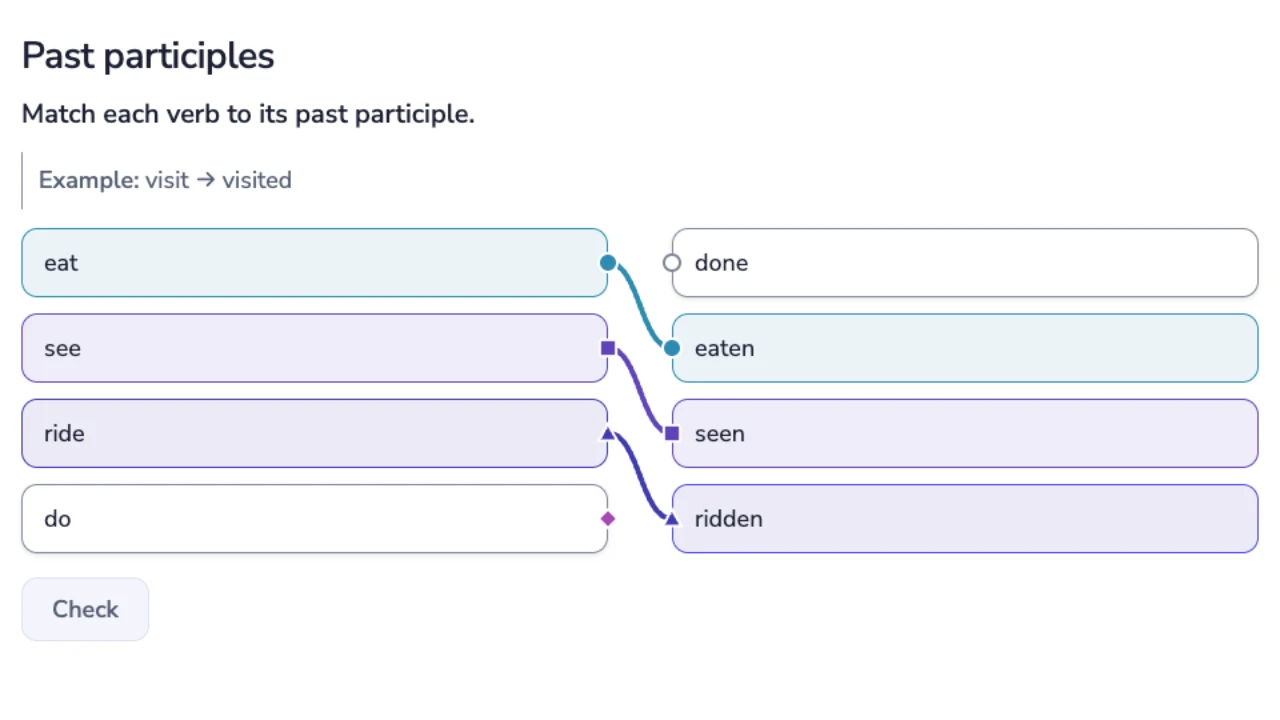
Send material that loads once
Avoid long shared videos and big files, especially for students on phones. Prefer material that loads once and then sits on the student's screen. KQED's tips suggest sending content ahead when you can: "email lesson content two to three days in advance to give students and families as much time as possible to gain access before the lesson." Plain text in a message is lighter still than an attachment.
Worked example: a vocabulary lesson
Say you are teaching past simple verbs. The slide version is twelve slides you share and talk through. If your screen share freezes on slide four, the lesson freezes too.
The low-bandwidth version:
- Match ten verbs to their past forms (go, went; buy, bought).
- Sort the same verbs into regular and irregular.
- Fill the gaps in a short story about last weekend, using a word bank.
- Speak: the student tells you about their own weekend, using five of the verbs.
Steps one to three run on the student's screen. If the call drops during step two, the student carries on sorting. When you are back, you pick up where they are. For more ideas in this shape, see vocabulary activities for online ESL lessons.
4. Speaking when the audio breaks up
Speaking is the part that suffers most, and the part tutors are most tempted to skip. Do not skip it. Change how you run it.
Cameras off, audio on. Agree at the start that either of you can turn the camera off at any time, no questions asked. UBC's guide recommends you "allow students to turn-off cameras when they face connectivity issues."
Slow down and shorten the turns. Long answers break up into gaps. Ask questions that need one or two sentences. Wait a second longer than feels natural before you reply, because the delay is often on the line, not in the student's head.
Use the chat as a safety net. When a key answer breaks up, ask the student to type it. Arizona State's guide suggests you "encourage students to participate and contribute via the chat feature if speaking up is impossible due to shaky internet connectivity." Then ask them to say it again, slowly. You get both the language and the speaking practice.
Check understanding with a task, not "can you hear me?". "Can you hear me?" gets a yes, even when half the sentence was lost. Instead, give a quick task: "Tell me the past of buy" or "Type the word that means tired." The answer tells you both whether they heard and whether they understood. More quick checks are in how to check understanding in online lessons.
When live audio fails for good, move speaking out of the live call. One teacher quoted by KQED describes a light setup: "I send vocabulary and audios and ask them to send back audios of readings and questions." A voice note over your backup channel is better than no speaking at all.
5. Agree a drop plan with the student
The worst drop is the one nobody planned for. The student rejoins, you both talk at once, you start the task again from the top, and ten minutes are gone. Agree the plan in the first lesson, before anything goes wrong. NCSSM's guide makes the same point about any disruption: "Provide students with clear guidelines for what to do in the event of a natural disaster." A dropped call is smaller, but the idea holds.

What the student does
- Rejoin the same link, on the same device if they can.
- Carry on with the task they were doing.
- If they cannot get back in a couple of minutes, send one message on the backup channel.
What you do while you wait
- Note where you were: the task, the question, the point you were making.
- Do not restart. When they are back, pick up from that note.
- If the wait gets long, send the next task over the backup channel so they can keep working.
A script for the first lesson
You can say something like this, in your own words:
"Sometimes the internet drops. That's fine, it's not your fault. If it happens, just open the same link again and carry on with what you were doing. I'll wait and I won't start over. If you can't get back in two minutes, send me a message. And if your video makes things slow, turn your camera off any time. We'll keep talking."
That is it. Thirty seconds now saves you minutes every week.
6. Phones as the student's only device
Some students have only a phone. Arizona State's guide suggests testing courses on phones to find problems early. Open your next lesson on your own phone and try every task with your thumb.
What to look for:
- Fewer things on screen at once. One task per screen, not three.
- Large tap targets. Words to tap or drag should be big enough for a thumb.
- No tiny worksheet PDFs. A full A4 page shrunk to a phone is unreadable, and pinching and zooming during a live lesson loses time.
- Small files. Bristol's guide warns that "large files can be difficult to upload and download, so consider ways to reduce the size of materials." Shrink pictures and split long documents.
If a worksheet is your main material, turning it into short tasks helps on both fronts. See how to turn a worksheet into an interactive online activity.
Mistakes to avoid
- Sharing your screen for the whole lesson. It is video all the way through, and when it freezes, the lesson freezes.
- Restarting a task from the top after every drop. Keep a note and pick up where you were.
- Blaming the student. KQED's advice is to "try to avoid harsh grades or punishments, offer several options for completing an assignment and be adaptable."
- Skipping the speaking part. Run it with cameras off, shorter turns and the chat as backup.
- No backup channel agreed. Set it up in the first lesson, not during the first drop.
Where Gomently helps
Everything above works with any tool. Here is where Gomently fits for students on weak connections:
- Students join with one link and the name they type: no account, no email, no PIN and nothing to install.
- Gomently runs in a web browser on laptops, tablets and phones, with nothing to install.
- Each student works on the lesson on their own device, while you move the class from section to section.
- A student's screen reaches you as small messages about what they did, not as video, which is easier on a weak connection.
- Camera, microphone and your screen sharing are built into the class room, so there is no separate meeting link; cameras and screen sharing are still video, so the advice above about switching them off still applies.
- If a student's connection drops or they reload, their work is kept on their device and catches up when they are back.
- If they rejoin from another device, they count as a new student, so ask them to come back on the same one.
- Aiko
- Marco
- Sofia
Noor
English B1
Your lesson has started
Lesson with your teacher
Homework
Past simple
ReadyNot started3 of 4 tasks done
Practise
The lost key
StartFor questions about joining, see the FAQ, or read more on the page for tutors.