How to make a worksheet interactive for online lessons
Audit any worksheet in ten minutes: keep, change or make live each task so students answer on their own screens instead of a shared PDF.
By Gomently Team11 min read


You already have good worksheets. Folders of them. The trouble starts when you share one as a PDF on screen: the students look at it, you read the gaps aloud, and one person answers while everyone else waits. The page is fine. The format is the problem.
This guide is for online tutors and small schools who want students to answer on their own screens. It is not a list of converter tools. It teaches the judgement first: which tasks to keep as they are, which to change into a different kind of task, and which to take off the screen and turn into live speaking. By the end you can look at any worksheet, decide task by task how it works online, and plan its online version in about ten minutes, with or without Gomently.
We will use one example all the way through: a one-page A2 past simple worksheet. It has four parts:
- a gap fill with a word bank
- a matching list of verbs and their past forms
- a short reading about a boy called Tom, with questions
- a box that says "Talk to your partner about last weekend"
You probably have a sheet just like it.
Step 1: Read the worksheet as a list of tasks, not a page
A worksheet looks like one thing. It is really several tasks sharing a page. Online, each one needs its own decision, so the first job is to pull them apart.
Take a pen, or open a note, and do two things:
- Number every task. Every instruction line is a task, even the small ones in a corner.
- Write what each task practises. Use four plain labels: form (getting the grammar right), meaning (knowing what words or forms mean), reading, speaking. One label per task. If a task has two, write the main one.
Then look for tasks that only work on paper. These are the ones that will break first:
- "Circle the verbs"
- "Draw a line between"
- "Fold the page and test your partner"
- "Colour the picture"
- "Write your answer in the box" where the box is tiny and meant for handwriting
Mark them with a star. They are not bad tasks. They just need a new form.
Worked example
Our past simple sheet becomes this list:
- Gap fill with a word bank. Aim: form.
- Match the verb to its past. Aim: form, mostly irregular verbs.
- Reading about Tom, five questions. Aim: reading, with the past simple in context.
- Talk to your partner about last weekend. Aim: speaking.
Task 2 gets a star, because the sheet says "draw a line". That took two minutes. You now know what the page is for, which is the only thing you need before you change it.
Step 2: Match each task to an online task kind
Now give each task an online form that keeps its aim. The rule is simple: change the action, keep the practice. A student who drew a line on paper now matches the pairs on screen. The thinking stays the same.
Here are the common swaps.
Gap fills
With a word bank: keep the bank. Students choose a word from the bank for each gap, just as on paper. The instruction can stay almost word for word: "Put the words in the gaps."
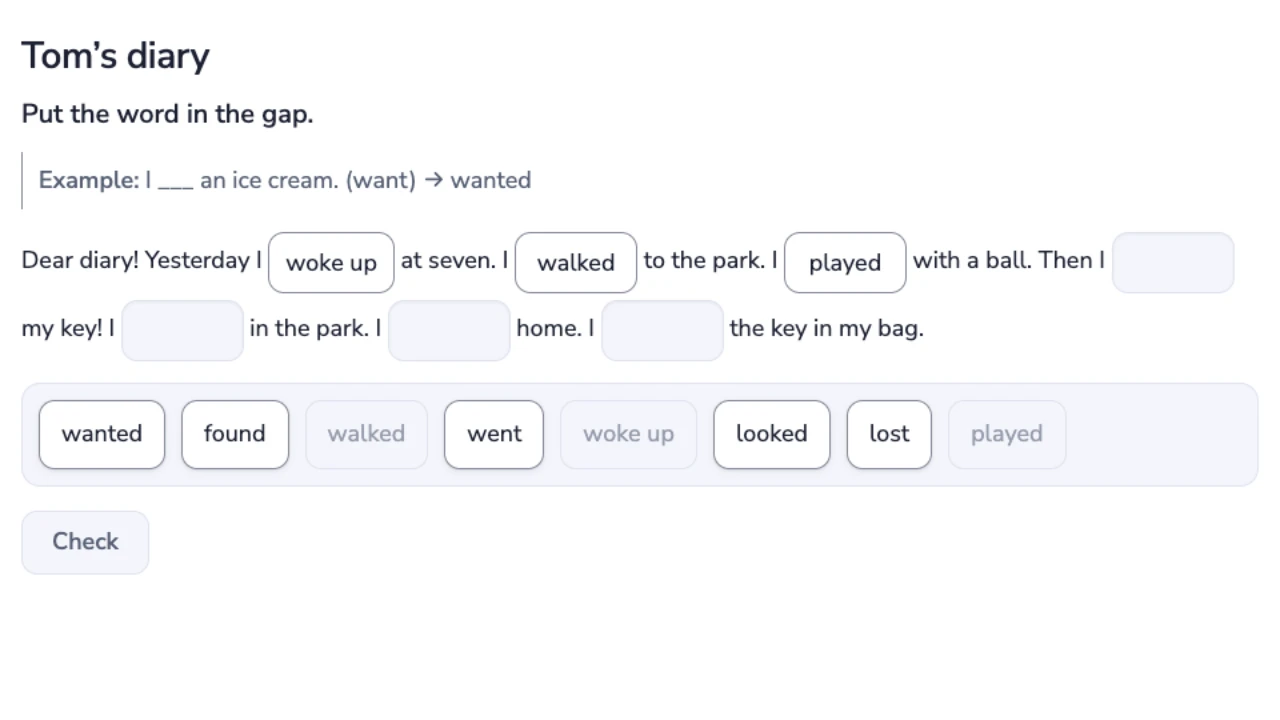
Without a bank: make the gaps typed. Show the base verb in brackets and give one done example first, so nobody guesses the format. For example: "Type the past form. I ___ (walk) → walked."
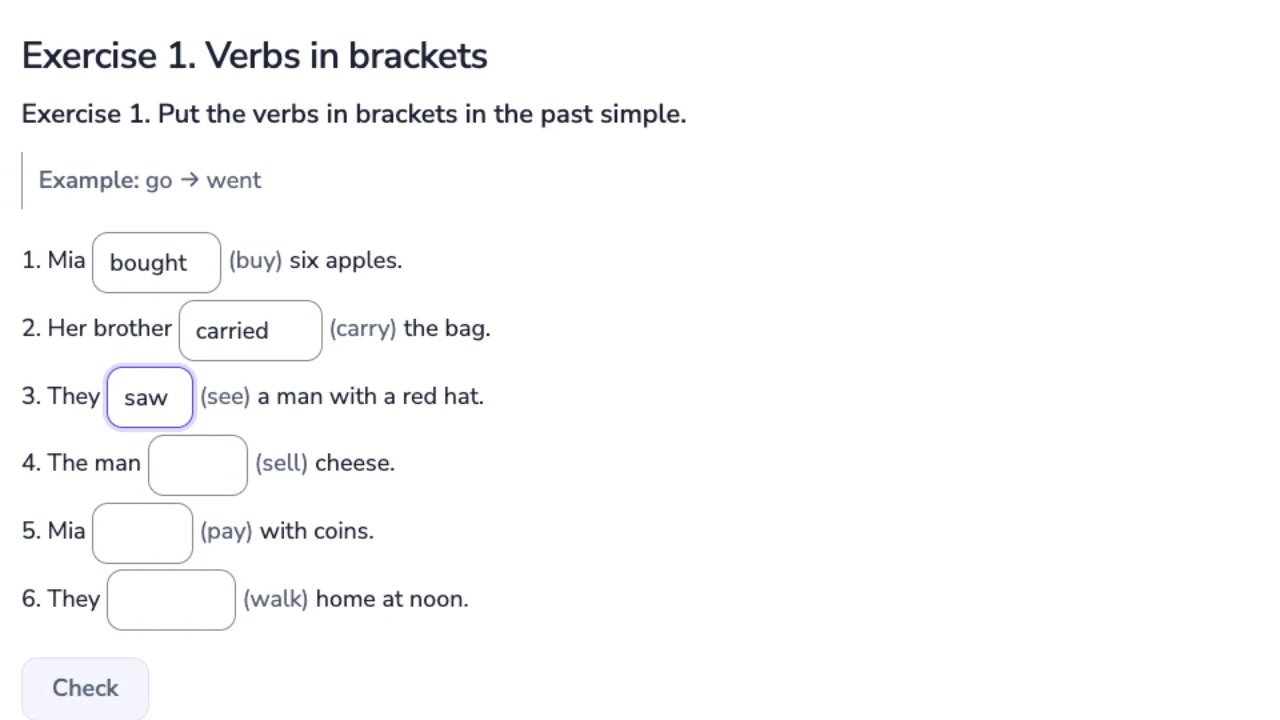
Typed gaps have one trap: students write correct answers you did not expect. "Tom didn't find the key" and "Tom did not find the key" are both right. Expect more than one right answer in typed gaps, and check how the task marks them before class.
There is also a middle path. If a bank feels too easy and typing too hard, make each gap a small choice between two forms: "Choose have or has." This works well for a weaker student or a first round.
Matching
A matching list carries over almost untouched. Go and went, find and found: the same pairs, now matched on screen instead of joined with a pencil line. Keep your instruction: "Match the verb to its past."
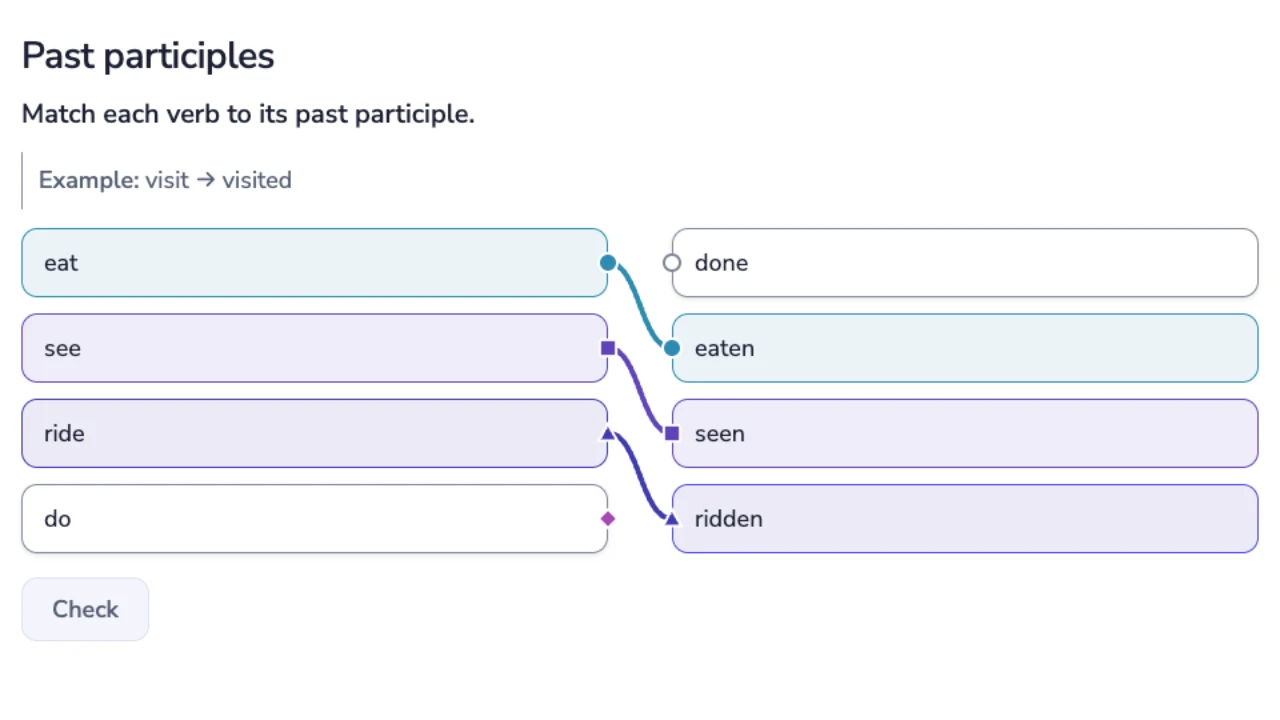
Matching also suits vocabulary columns: "Match the word to its meaning." If your sheet has a word list next to definitions, this is its online home.
Circling and underlining
"Circle the verbs" becomes marking words in a text. Students tap the words instead of circling them: "Tap the verbs in the past."
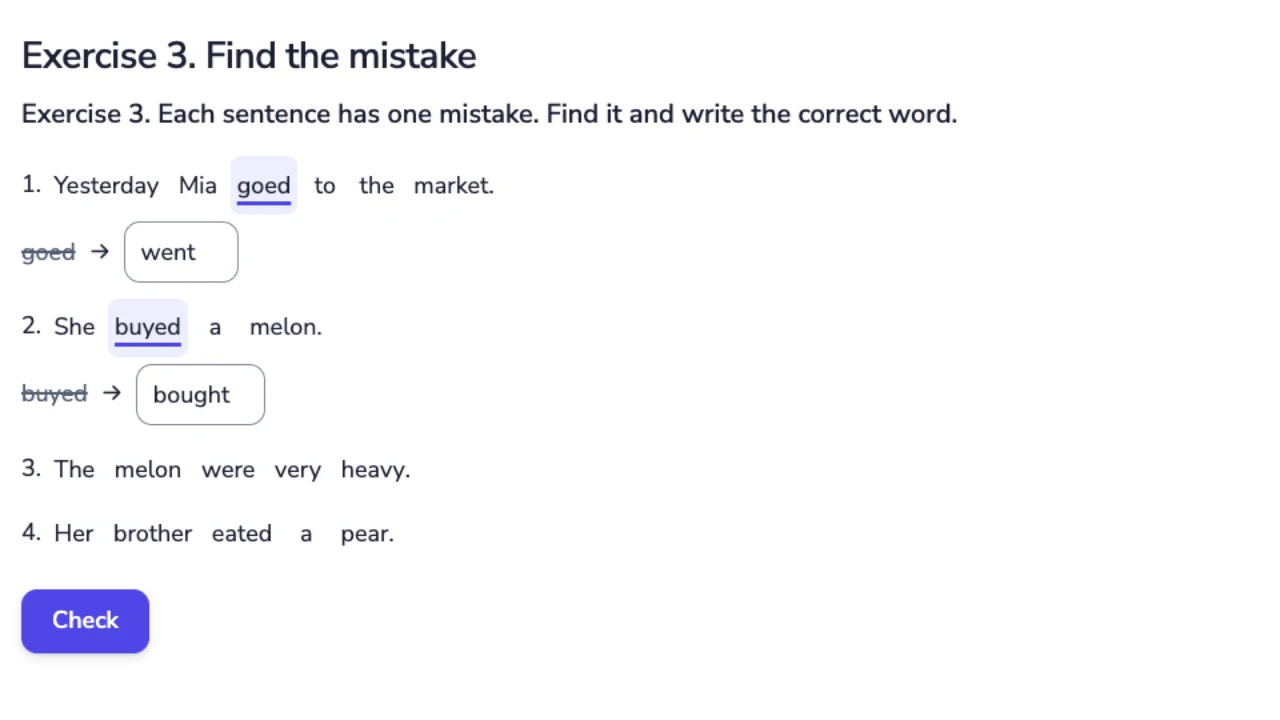
The same idea handles error correction, a classic worksheet task that is awkward on a shared PDF. Write sentences with one mistake each and ask students to tap the wrong word, then say the correct form aloud. Students find the mistake, then you fix it together aloud.
Putting in order
"Put the words in order" becomes an ordering task where students arrange words into a sentence or a question. It also works for longer sentence building: "Build the sentences." Word order in questions ("Where did you go?") is a good fit, because the mistake is visible the moment a word lands in the wrong place.
Reading questions
Open comprehension questions are the hardest to check live. Turn some of them into true or false statements about the text. Have a short reason ready for each one, for when a student gets it wrong. If a student says Tom lost his key at school, you can point them to the line: "He found it in his bag." The student learns where to look, not just that they were wrong.
For several statements about one text, a true, false or not given grid works well: "Read about Tom. Tick T, F or NG." Not given is useful from about B1, because it makes students separate what the text says from what they assume.
Keep your wording
Whatever form you choose, keep your original instructions, sentences and names. Tom stays Tom. Your example sentences stay yours. Students who know your sheets should recognise them, and you should be able to teach from them without rereading.
Worked example
- Gap fill with a bank: gaps with the bank kept.
- Match the verb to its past: matching, the star removed.
- Reading about Tom: three true or false statements with reasons, plus two questions kept open for discussion.
- Talk to your partner: see Step 3.
If you want a closer look at converting one single activity, our earlier post on turning a worksheet into an interactive online activity goes deeper on that. This guide is about the whole sheet.

Step 3: Decide what stays live and spoken
Not every task should become something to click. Some tasks exist so students talk, and typing kills them.
Speaking boxes stay spoken
"Talk to your partner" is there for speaking practice. If you turn it into a typed answer, students practise writing slowly and lose the point of the task. Keep it live, with you, out loud.
Online, you are often the partner. That is fine. Plan the questions so the talk has a shape:
- Ask one easy question everyone can answer.
- Ask one that needs a past form they just practised.
- Ask one follow up that makes them say more.
Worked example
The box "Talk to your partner about last weekend" becomes three questions you ask each student in turn:
- What did you do on Saturday?
- Where did you go, and who did you go with?
- What was the best part, and why?
In a group of three or four, ask question 1 around the room first, then question 2, then question 3. Students hear the target forms from each other before it is their turn. Note one or two errors per student on paper and correct them at the end, not mid sentence.
Open writing becomes a short free answer
Some worksheets end with "Write about your weekend." Online, make it short and readable on screen: one prompt, one or two lines. "What did you do on Saturday? Answer in one line."
Do not expect this to be marked automatically. Free writing has too many good answers. Read the answers yourself and use them for talk: pick one with a nice sentence and one with a common mistake, and discuss both. The writing now feeds the speaking.
A quick vote works the same way. "Which weekend sounds best?" with three options takes a few seconds, and then you ask students to explain their choice aloud.
Step 4: Keep the order, or rebuild it on purpose
You now have a list of online tasks. The last planning question is the order.
When the worksheet already works
If the sheet flows well on paper, keep its sequence. Most good worksheets already move from controlled practice to freer use: gaps, then matching, then reading, then speaking. Do not reorganise a sheet that works. Just make each task answerable.
When the worksheet is too long
A two-page sheet that fills a whole paper lesson will feel longer on screen, because students cannot glance ahead. Split it into sections, each with one job:
- Warm-up: something short and easy, such as the matching task.
- Practice: the gap fill.
- Check: the true or false questions on the reading.
- Speaking: the live questions.
The rule of thumb is one aim per section. If you cannot name a section's aim in three words, it is doing too much. Split it.
The check section matters more than it looks. It tells you, before the speaking, whether the form has landed. Our guide on checking understanding in online lessons shows how to use tasks like these as checks.
What to cut
If the plan is still too long, cut repetition, not variety. Ten gaps that test the same form can become six. Keep at least one task per aim, and always keep the speaking.
Step 5: Run it live, one to one and in a group
A converted worksheet only helps if you teach it differently. The shared PDF made you the reader. Now you are the person who reacts to answers.
One to one
Let the student answer a whole task, then go through it together. Spend your time on wrong answers:
- Ask the student to read the sentence aloud. Many students hear the mistake themselves.
- If they do not, give one small clue, such as "Is find regular?"
- Let them try again on the same item before you move on.
Right answers need a word of praise and nothing more. You save time for the items that teach something.
In a group
Everyone answers on their own device at the same time. This is the biggest change from the shared PDF: nobody waits, and nobody hides behind a faster classmate.
Watch for the task where most students struggle and pause there. Do not go through every item. Go through the ones the group missed.
Say your class of four all miss the same gap, "She ___ (go) to the park", with three of them writing "goed". That is not four mistakes. It is one teaching moment. Stop, put go and went on the board, give two more examples, and ask each student for one new sentence with went. Then move on. The rest of the task can wait.
If only one student misses an item, note it and talk to them about it during the next task, or at the end.
After the lesson
Keep a short note of which tasks worked and which you cut or changed live. Next time you use the same worksheet, your online version starts from that note, not from the PDF.
Mistakes to avoid
- Turning every task into multiple choice. It is quick to set and quick to answer, which is the problem. Students recognise forms instead of producing them. Use typed gaps and ordering for form practice, and keep choice for reading and for single grammar decisions. When you do use it, have a reason ready for each wrong option, such as "go is irregular", so the mistake becomes something to discuss.
- Converting speaking tasks into typing. A speaking box becomes a writing task, and the lesson loses its talk. Keep speaking live.
- Keeping a two-page worksheet as one long screen. Students scroll, lose their place and stop. Split it into short sections with one aim each.
- Copying scanned text that students cannot read on a phone. A blurry scan is hard enough on a laptop. Retype short texts, keep sentences short, and check how one section looks on a small screen before class.
- Rewriting your sheet from scratch. The value of your worksheet is its wording and its examples. Change the form, not the content.
Where Gomently helps
You can do everything above with paper notes and a few tools.
- You make a lesson by describing it in a chat, in your own words, and you can attach your own material.
- You can attach PDFs, Word files and photos of worksheets, and Gomently builds the lesson from them. Old .doc files and password-protected files do not work.
- A language lesson can follow your worksheet as it is, instead of making a new lesson from it.
- Language lessons use ready-made tasks, including filling gaps, matching, putting in order, sorting, true or false, multiple choice and marking words in a text.
- A short free answer or a poll is possible, but it is not marked, and students never record themselves: speaking happens live with you.
- A lesson is a series of sections, and each section is a page of reading, pictures and tasks that students answer and Gomently marks.
- You change a lesson by writing in the chat, or by pointing at a part of it and saying what should change.
- Each student works on the lesson on their own device, while you move the class from section to section.
- If you want to keep a page exactly as it is, you can bring the PDF or Word file into a class, and everyone can write on its pages.
If you teach on your own, the page for tutors shows more.